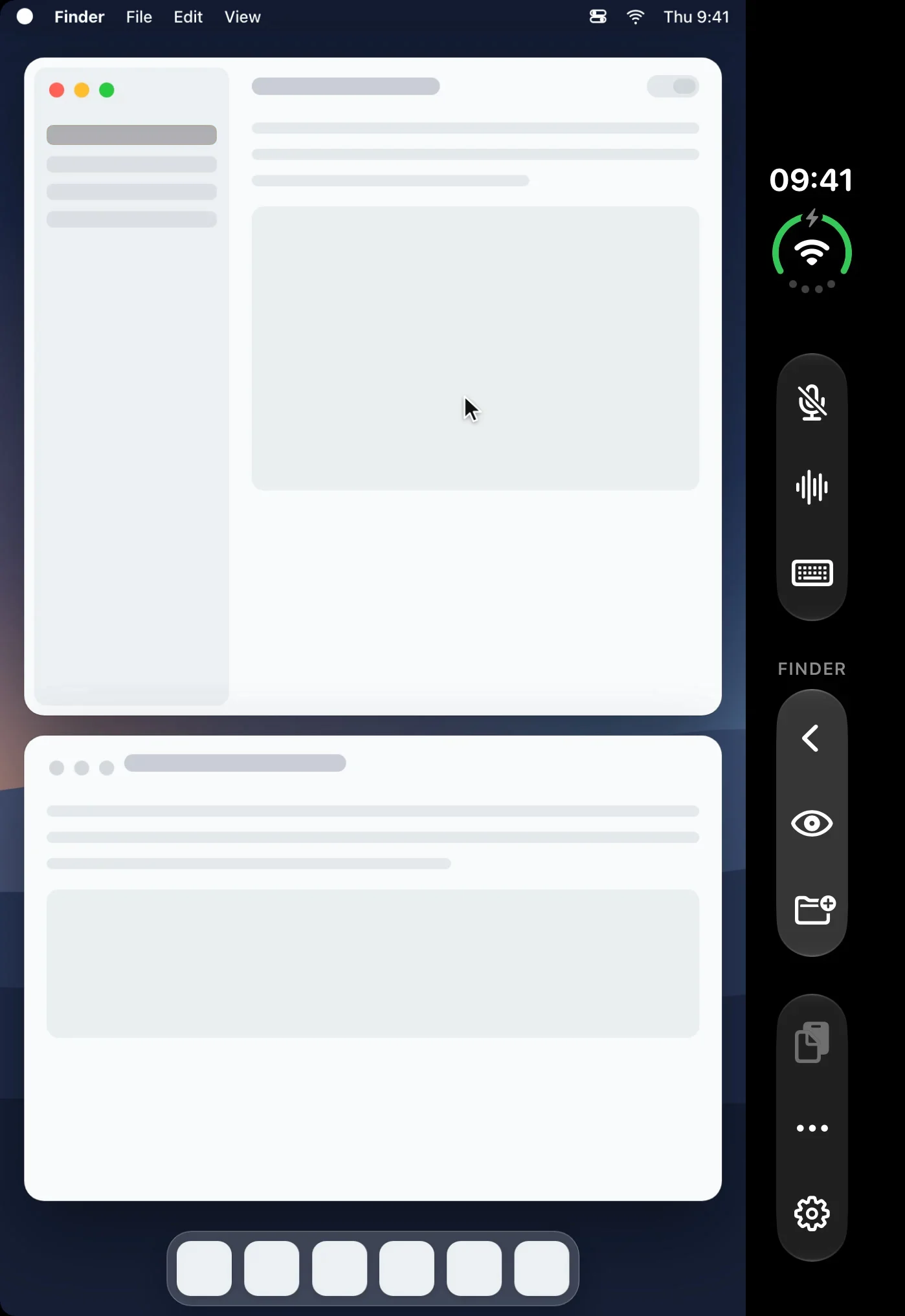
Right into the corners.
On iPhone Duo, your Mac runs to the very edge of the screen. Where the menu bar meets a rounded corner, Yosei draws it a little narrower, just enough that the Apple menu and the clock are never cut off.
 Yosei
Made for the AGI era, when Macs run headless and agents do the work. Watch from your iPhone or iPad, and take over with a touch.
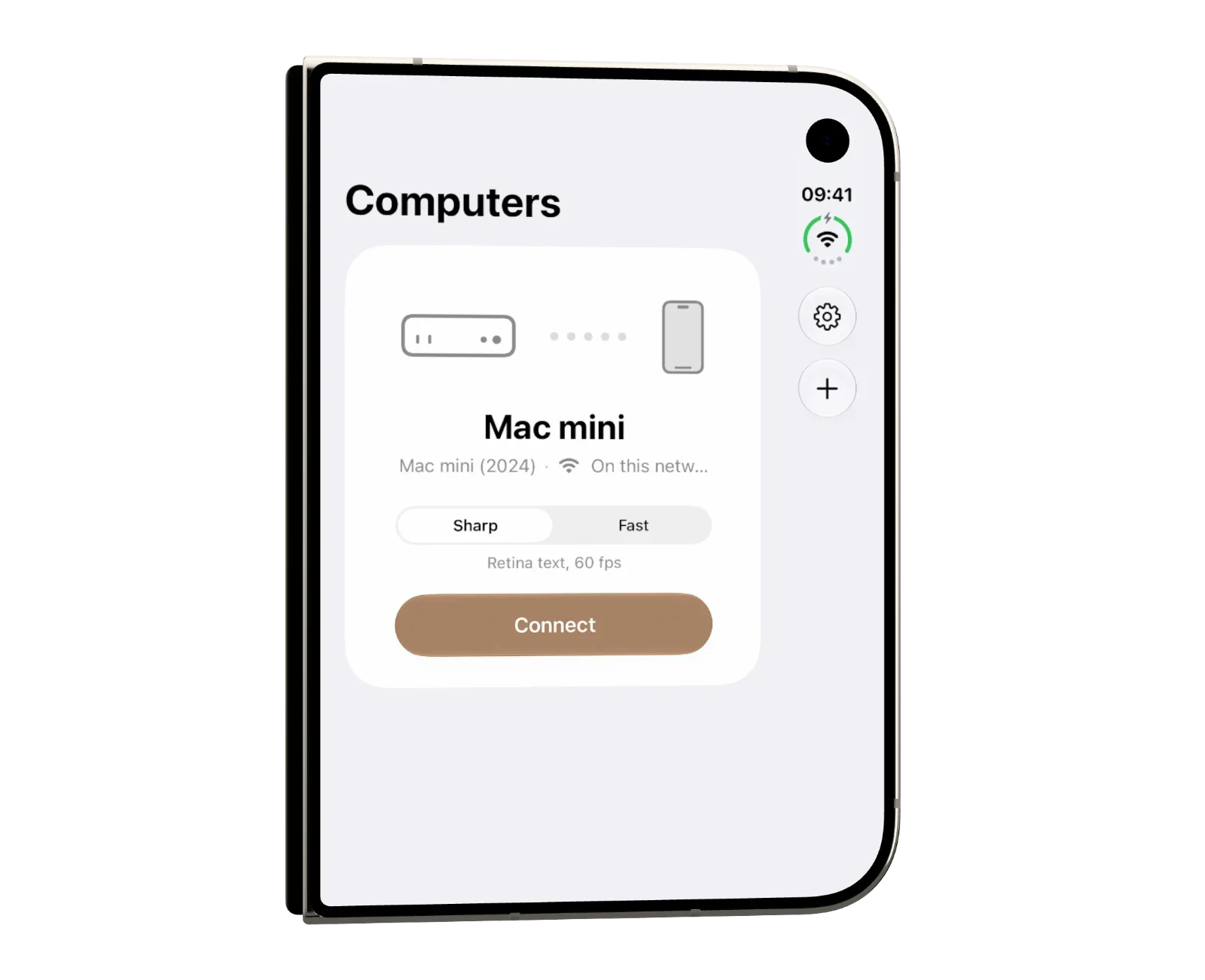
Your Mac mini has no display.
Agents do the work there, out of sight.
Shown on iPhone Duo. Yosei runs on iPhone and iPad too.
Agents
Give an agent like Claude Code a job on your Mac. It sees the screen and works in your apps, and a glowing edge shows when it’s in control.
Tap the screen or press Pause. The agent stops before its next step.
A touch, a key or Pause in the banner hands control back to you. The agent waits until you let it carry on.
On a Mac with no monitor, the agent works on a display beside yours, so your windows stay where you left them.
Each call is written to a log on the Mac, and the last few show in the banner while the agent works.
Apps with no scripting, like Final Cut Pro and Freeform, work too: the agent sees the screen and uses the pointer and keys.
Display
Most screen sharing copies your Mac’s screen as it is, so a different shape gets black bars. Yosei gives your Mac a new screen shaped to fit yours. Pick a device to see.
On iPhone, your Mac stops just short of the Dynamic Island and the rounded corners, so nothing is cut off. Zoom in, and the view follows what you type.
iPhone Duo
Open, folded shut or set down like a laptop, Yosei shapes your Mac to each of the Duo’s screens. Right into its rounded corners.
On iPhone Duo, your Mac runs to the very edge of the screen. Where the menu bar meets a rounded corner, Yosei draws it a little narrower, just enough that the Apple menu and the clock are never cut off.
Every menu opens with a tap, even in the strip along the top edge that iOS keeps for its status bar.
Open it like a laptop, and a Mac keyboard and trackpad rise out of the fold. The row above the keys holds the app’s keys, next to esc. Tap fn for F1 to F12.
On the outer display, Yosei’s controls and the Mac app’s keys sit in the strip beside the camera, the way Safari uses it, and your Mac fills the rest.
Touch
Yosei sends your gestures to the Mac app under your fingers, the way a Mac trackpad does. Not to a picture of it.
Pinch, and the photo zooms in Photos. The window stays as it is.
Your Mac plays the scroll at the pace your fingers moved, so pages glide instead of stuttering. Flick, and it glides on. Touch the glass, and it stops.
Tap to click, two fingers to right-click, three for a middle click. Double-tap with three to zoom in on the picture, and tap with four to show or hide the controls.
Choose Trackpad under Touch in Settings, and the whole screen works like your Mac’s trackpad. Settings shows every gesture, acted out with fingertips.
Move the pointer with one finger, anywhere on the screen.
Keyboard
Turn on Show for Text Fields, and tapping a text field on your Mac brings up the keyboard. The picture slides up so you see what you type, and the keyboard goes away when you leave.
Your Mac’s shortcuts work on a hardware keyboard. ⌥Tab switches apps; add ⌃⇧ for the few iPadOS keeps.
App keys
Yosei knows which app is in front on your Mac and hands you its keys, sized for a finger: Back and Reload in Safari, Play and New Slide in Keynote, Send in Mail. Switch apps, and the keys change with you.
On iPhone, the space below your Mac holds the app’s keys, as easy to reach as the buttons beside the Dynamic Island. Turn it sideways and they split into two groups, one under each thumb.
Safari, Finder, Keynote, Mail, Notes, Terminal and Xcode each have a set, and other browsers and terminals share theirs. Every other app gets Spotlight, Mission Control, App Windows, Undo and Redo.
The keyboard bar starts with one window key, then esc, tab and the modifiers, so tab is never a scroll away. Tap it and the app’s keys flow out; tap it again and they flow back in.
The app’s keys, the keyboard bar and the buttons beside the Dynamic Island give a light tap as your finger lands, like pressing a real key.
Details
Your Mac’s sound on your iPhone or iPad, in step with the picture. And your iPhone or iPad as your Mac’s microphone, so any app can use it.
On ProMotion iPads and iPhones. Smooth asks the most of your Mac, Fast the least.
When the screen settles, Yosei sends one extra-sharp picture of it.
Display Size works like scaling on a Mac display: Larger Text, Default or More Space.
Left alone, Yosei eases off for spinners and streaming text, and is back at full speed at your first touch.
Pressure and tilt reach your drawing apps, the way a drawing tablet’s do. Ink appears under the tip at once.
Text, pictures and files, both ways.
Tap the waveform and your Mac’s own Dictation types what you say, in any app.
A Mac mini whose display has gone to sleep wakes for you, and its picture comes up by itself. Switch to another app and back, and your session is still there.
Open Yosei on your iPhone and your Mac moves over from the iPad, which says where it went, with Use Here to take it back.
Personalize
Choose Yosei’s icon for your Home Screen, and its buttons, switches and highlights take the same colour. Six colours in two styles, and four wallpapers, each in Light and Dark.


Connection
Yosei finds your Mac over the cable and on your Wi‑Fi by itself, and reaches it from anywhere through Tailscale. No Yosei servers, and encrypted end to end.
Setup
In Yosei on your iPhone or iPad, Set Up a Mac sends the download straight to your Mac. Nothing to type.
Or send it by Messages or Mail. With the same Apple Account, Handoff also puts the link in your Mac’s Dock.
One window walks you through each permission and the six-digit code. Your Mac lights each digit as you type it.
Free, signed and notarized by Apple, and it keeps itself up to date. More about Yosei for Mac
A Mac with macOS 26 or later, and an iPhone or iPad with iOS 26 or iPadOS 26. Yosei for Mac is a free download from this site; Yosei for iPhone and iPad comes through TestFlight during the beta.
No. Yosei gives your Mac a display sized for your iPhone or iPad, so a Mac mini with nothing plugged in works. Your Mac does the work; it needs to stay on and connected.
Any MCP client, such as Claude Code, can use Yosei’s tools: on your Mac only, and off until you turn them on. An agent that uses them gets a display of its own beside yours, which you can watch from your iPhone or iPad.
You can watch it, or take over. Your Mac has one pointer and one keyboard, so touching the screen pauses the agent and gives them to you. Resume hands them back.
No. There are no Yosei servers: your devices connect over USB, your local Wi‑Fi, or Tailscale, and you don’t need a Yosei account. Screen sharing is encrypted end to end, even when Tailscale has to relay it away from home.
Sidecar comes with your Mac and works with an iPad nearby. Yosei reaches your Mac from anywhere through Tailscale, carries sound and the microphone both ways, lets an agent use your Mac while you watch, and works on iPhone too.
No. Over a cable or your home Wi‑Fi, nothing leaves your home. You need the internet only to reach your Mac from somewhere else.
No. Yosei runs on iPhone and iPad. On iPhone Duo it also has a layout for the outer display and, set down half open, a Mac keyboard and trackpad.
The public beta is free. Pricing comes later, and we’ll say what it is well before the beta ends.
Now. Yosei for Mac is a free download, and Yosei for iPhone and iPad is in public beta on TestFlight. Both are just below.
Yosei is two free apps that work together: one on your iPhone or iPad, one on your Mac.
Yosei for Mac needs macOS 26. Yosei for iPhone and iPad needs iOS 26 or iPadOS 26.